Showing posts with label Galaxy. Show all posts

Wednesday, May 13, 2015

Samsung Galaxy Tab 10.1 Clear and Delete the browser history

0 comments
Do you want to remove or clear the browser history of your Samsung Galaxy Tab 10.1 so that others who shared using your Tab won't snoop in of what pages you been visited. This simple tips will just show you how to do it, if you want your activities private just follow this tips.

clear browser history of galaxy TAb 10.1
1) Open the browser applicationon
your Samsung Galaxy Tab 10.1.

2) Tap on the menu in the
top right corner, and then select
Settings.

3) On the left, pick "Privacy
and security" from the menu.

4) Then select the "Clear history"
option in the new menu on the right.

That's it! Just always not to forget to clear your browsing history, if you want to keep your web browsing in private with your Galaxy Tab 10.1.
Read more »

Samsung Galaxy Nexus User Manual

0 comments
Here's the Samsung Galaxy Nexus User Manual, this will guide through the rest on how to do some tweaks on your phone. This smartphone was reportedly released  by Verizon in the US,  Bell, Virgin Mobile, Rogers and Telus in Canada. In the UK, the Galaxy Nexus was made available on O2 and Three Network and other European countries.

Here's the topics that describe how to use your Galaxy Nexus phone from Galaxy Nexus official page.

* Get started
o Set up your phone
o Why use a Google Account?
o Get around
o Touch & type
o Use the lock screen
o Search your phone & the web
* Make yourself at home
* Try some apps
* Tune performance
* Learn the Phone app
* Enter & edit text
* Connect to networks & devices
* Search by text & voice
* Manage accounts
* Secure your phone
* Galaxy Nexus User's Guide (PDF)

The user guide of Samsung Galaxy Nexus I9250 android 4.0 Ice cream sandwich smartphone
* Change the wallpaper
* Set ringtone & other sounds
* Make a phone call
* Get your contacts
* Arrange & work with apps
* Add widgets
* Manage notifications

* Start Gmail
* Find People
* Manage your Calendar
* Use your Camera
* Beam screen content
* Manage downloads

* Optimize battery life
* Optimize data usage
* Optimize memory usage

* Dial stored numbers
* Answer or divert calls
* Work with the Call log
* Place an Internet (SIP) call
* Listen to your voicemail
* Dial by voice
* Options during a call

* Use the keyboard
* Type text by speaking

* Connect to mobile networks
* Connect to Wi-Fi networks
* Connect to Bluetooth devices
* Connect to keyboards, mice, and other devices
* Connect to a Windows computer via USB
* Connect to a Macintosh computer via USB
* Share your mobile data connection
* Connect to virtual private networks (VPNs)
* Control airplane mode & other network settings

* Refine Google Search
* Use Voice Actions
* Voice Action commands

* Add or remove accounts
* Configure account sync options
* Change backup & reset options

* Set screen lock
* Encrypt your phone
* Work with certificates

Apps

* Gmail
* Maps
* Google+
* Android Market
* Camera, Gallery, & Movie Studio
* Browser
* People
* Calendar
* Talk
* Messaging
* Music
* Books
* YouTube
* Earth
* Email

Samsung Galaxy Nexus Help Page
Download: GalaxyNexus_Manual.pdf
Read more »

Things Needs to Avoid in Handling Samsung Galaxy Ace

0 comments
These are just a few things you always avoid in handling with your precious Galaxy Ace to keep away into trouble and serious issues or end up your device in to fatal state like bricking it in no time. Many users have already learned about this stuff but this serve as warn to others to keep their Galaxy Ace stay as good as it is.


Do not install ROM Manager for Galaxy Ace

A ROM Manager is a manager for Clockworkmod Recovery ,  It Download and manage your ROMs, make and restore backups and make SD partitions. It's a very useful application which saves time because you don't have to reboot to recovery.
However , it doesn't support Galaxy Ace yet. It perfectly works on other Android Platforms but not on Ace. If you tried to install the ROM manger to your Ace , as a result it will not turn ON again and you already ended up a bricked phone. The only thing to fix it, is by sending it back to the service center nearest you. And then obcourse you will be charge for the fix.

So, Instead of using a ROM Manager, we recommend you to use a CWM Manager. Use Clockworkmod Recovery  for Backups, Flashing .zip, Restoring and whatever the Recovery can manage to do.

Issues with Samsung Kies on Galaxy Ace to update the Firmware
Samsung Kies is an Official software application released by Samsung and use to update the firmware, sync your application and other stuff with the Samsung devices. According to some reports in forums that they used to bricked their Galaxy Ace while using Kies in updating the firmware. The problem is that it will just stuck and suddenly stops responding because of RAM issues. RAM or read only memory on Galaxy Ace does not meet for Kies requirements.

Those are just a brief details of some users report about how they messed up their Samsung Galaxy Ace. So, just let your Galaxy Ace untouched so that you can make use a lot of time with it.
Read more »

Dealing with AudioOut_1 Partial Wakelock on Samsung Galaxy S2

0 comments
That runs in Ice Cream Sandwich (Fix battery fast drain issue). Recently, most Samsung Galaxy S2 users who are already upgraded to the latest Android 4.0.3 Ice Cream Sandwich (ICS) talking about the problem of a wakelocks as caused by the Audioout_1. This has been noticed by using Better Battery Stats on the new ICS firmware with the Galaxy Nexus, causing the battery draining fast, while when listening Audio like Google Music, the Sirius/XM app or perhaps just happens when doing nothing at all. So, if you'll also newly upgraded your Galaxy S2 to the newest Ice Cream Sandwich firmware and experience this kind of issues too, this might help you to solve that problem. This reportedly occured on firmware with build number I9100XWLP2, I9100XXLPQ and I9100XXLP7, other carrier branded version like T-Mobile and Vodafone with firmware build I9100BOLPD  and I9100BULPC and on later version were not already been tested.

According to some users experience that the AudioOut_1 Partial Wakelock appears to be connected to the Touch Sounds and Screen Lock Sounds options in the phone's Sound Settings. So, to disable or shutting down the Touch Sounds & Screen Lock Sounds in Settings will fix the the battery draining problem.

What is AudioOut_1 basically?

"AudioOut_1" is a Wakelock that is basically a kernel process that funnels data from audio apps to the audio hardware. It's what processes audio from say, Pandora or Slacker Radio, and passes it to the phone's audio hardware. (from toms-world.org)

Here's how to fix the AudioOut_1 Partial Wakelock problem:

Go to > Settings > Sound
Uncheck this options:
"Keytones"
"Touch sounds"
"Screen lock sound"

how to fix AudioOut_1 Partial Wakelock on Samsung Galaxy S2 running with Android Ice Cream OS
I just left the "Ring and Screen Tap" vibra option" on mine.
I tried it and it happens that my Galaxy S2 went in an hour losing only 1% of the battery and the results the WakeLock percentage for AudioOut_1 goes down as I check back into BetterBatteryStats. Unlike before that I have about 10%-15% battery drain even when my Galaxy S2 is on idle mode. So, just try it out. Enjoy!
Read more »

Download Samsung Galaxy Gio S5660 User Manual

0 comments
Here's what you are looking for the Galaxy Gio S5660 User Manual you can download it here. It was not yet long time ago since the Samsung Galaxy Ace S5830 has been released and you will need to know how to navigate of its function.

Well, here's the Samsung Galaxy Gio S5660 User Manual
Samsung Galaxy Gio GT-S5660 mobile phone user manual is now available online and can be downloaded directly at Samsung website. This Samsung Galaxy Gio GT-S5660 manual comes in 130 pages on PDF document format (2.66 MB).

Samsung Galaxy Gio GT-S5660 User Manual PDF

Download here
Read more »

Download Samsung Galaxy Tab P1000 User Manual

0 comments
Here's the user manual for Samsung Galaxy Tab P1000, this may help you in getting to know with your newly purchased Samsung Galaxy Tabs.
All things you need to know on how to navigate and operate the Galaxy Tab from unpacking, charging, inserting sim card and memory card. As well as details to know your Tabs from accessing settings and costumizing applications, Email, text messaging, calling, web browsing, managing contacts and etc.. This also includes on how to properly handle your galaxy tabs.

Download the  official  "User Guide Setting, Manual, Quick Start Guide, Setup and Troubleshooting" for Samsung Galaxy Tabs GT-P1000 from Samsung Support.


Samsung Galaxy Tab P1000 User Manual Download

Samsung Galaxy Tab User's Manual
Read more »

Download Samsung Galaxy Fit S5670 User Manual

0 comments
If you have purchased a Samsung Galaxy Fit S5670 and wanted to know how to operate and navigate to make use of it, this user manual will help you guide through while tweaking and getting familiar with your Samsung Galaxy Fit S5670.

You will still need this user manual because sometimes you will use other features that you will only find some tips on it. Just grab a copy of your Galaxy Fit User Manual from the links below and enjoy getting used of your phone.

Grab your Galaxy Fit User Guide from Samsung Official Page.


samsung galaxy fit user manual

Samsung Galaxy Fit GT-S5670 User Manual
Read more »

Download Samsung Galaxy Nexus I9250 User Manual

0 comments
Here's the Samsung Galaxy Nexus GT-I9250 user manual, the first device to ship with the brand new Android 4.0 Ice Cream Sandwich platform. This smartphone are also known as Samsung Google Nexus Prime, Samsung Google Galaxy Nexus I9250, Samsung Google Nexus 3, Samsung Google Nexus 4G, Samsung Nexus Prime 4G LTE and other variants.  If you have any specific questions on how to do some tweaks on your new Galaxy Nexus, this user manual will guide you in everything you wanted to know about your phone.


The user guide of Samsung Galaxy Nexus I9250 android 4.0 Ice cream sandwich smartphone

Download Samsung Galaxy Nexus User Manual from official Samsung's website download area.
Samsung Galaxy Nexus GT-I9250 Quick Start Guide
http://downloadcenter.samsung.com/content/EM/201111/20111115153841927/GT-I9250_QSG_EU_Eng_Rev.1.0_111029a_Screen.pdf

Samsung Galaxy Nexus GT-I9250 User Manual
Read more »

Download Samsung Galaxy S II I9100 User manual

0 comments
If you purchased and got a Samsung Galaxy S II in hand you need this user manual for your device to help you navigate its features and getting to know it with a full access. This user manual is your guide to how properly handle you Samsung Galaxy S II, navigating messages, SMS, calling, email, browsing etc..
This also includes safety tips and troubleshooting instructions.

SAmsung Galaxy S II User manual

Here's the Samsung Galaxy S II User manual and quick start guides from the Samsung's website.
Samsung_Galaxy_S_II_GT-I9100_Quick Start Guide & User_Manual.pdf
Read more »

Download T-Mobile Samsung Galaxy S II t989 User Manual

0 comments
If you have bought T-Mobile Samsung Galaxy S II SGH-T989 already and somehow looking for the user manual so that you'll learn how to tweaks your newly android phone and have fun making use of it, download the user's guide from the link below.

The T-Mobiles Samsung Galaxy S II is also known as "Hercules" - this devices comes with 4.52 inches display screen with a little bit more curved in the four corners body unlike the size of  Galaxy S2 Sprint D710 and Galaxy S2 AT&T which has  4.3? only, so do the SGS2 GT I9100 International version.  But still it uses Super AMOLED Plus Capacitive Touchscreen with TouchWiz UI v4.0 and protected with scratch-resistant surface via Corning Gorilla Glass Display. For the screen resolution, and equipped with WVGA touchscreen in  (800 x 480 pixels) pixel resolutions. Isn't it nice!

We'll here's your T-Mobile Samsung Galaxy S II t989 User Manual - T989_English_User_Guide.pdf

Samsung GAlaxy S II SGH-T989ZKBTMB User Manual

Samsung Galaxy S II SGH-T989 by T-Mobile User Manual
Read more »

Download Samsung Galaxy Mini S5570 User Manual

0 comments
Get the information on how to navigate and operate your Samsung Galaxy Mini S5570 with its own users manual. This manual is packed all available infos in getting to know your galaxy Mini GT-S5570 and will help you to make use of your newly purchased Galaxy Mini.

Contents and details of this Samsung galaxy Mini S5570 users manual  are guides of following:
- unpacking
- Installing Sim Card
- Installing battery
- Installing Memory Card
- Turning the device On and Off
- Idle screen navigation
- Touch Screen navigation
- Costumizing
- Application Accessing

And a lot more like:
 Calling  messaging, Downloading, Entertainment,Web browsing etc. this also includes safety precautions on how to properly handle you Samsung galaxy mini and troubleshooting tips to fix any unwanted issues.

samsung galaxy mini user guide and manual


Download Free Samsung Galaxy Mini user manual
For Orange Carrier UK, here you can download Orange Galaxy Mini user manual.
The Samsung UK official support page here The Samsung Galaxy Mini (S5570)
Read more »

Download Samsung Galaxy Ace S5830 User Manual

0 comments
If you are looking for the Samsung Galaxy Ace S5830 User Manual you can download it here. It was not yet long time ago since the Samsung Galaxy Ace S5830 has been released and you will need to know how to navigate of its function.

Well, here's the Samsung Galaxy Ace S5830 User Manual
http://downloadcenter.samsung.com/content/UM/201107/20110718182314433/GT-S5830_UM_EU_Gingerbread_Eng_Rev1.0_110512.pdf

Samsung Galaxy Ace S5830 User Manual Download

All you need to know about how to use you Samsung Galaxy Ace S5830 is on it.
Read more »

Download Samsung Galaxy S Plus I9001 User Manual

0 comments
If you have recently bought the Samsung Galaxy S Plus I9001 which runs on Android 2.3 Gingerbread OS and was sold on T-Mobile, Orange and Vodafone. As a new user of Android device, you will need this user manual so that you will know how to navigate of its functions. This android device is built with 1.4GHz processor has its popping touchwiz 3.0 on the top of the Android experience.
Samsung Galaxy S Plus I9001 User Manual download
So, here's the Samsung Galaxy S Plus I9001 User Manual that you're looking for.
I9001_UM_EU_Gingerbread_Screen.pdf
This Samsung Galaxy S Plus I9001 user manual is very useful if you will encounter some problem and if you don’t know how to do some tweaks on it, you can try to find the answer in the user manual.
Read more »

How to Con­nect the Sam­sung Galaxy S2/SII I9100 to PC via USB

0 comments
Many users who just recently bought Sam­sung Galaxy S2 I9100 struggling an issue when  tried to con­nect the phone to the PC to access the SD card though, and somehow it didn’t really work. An error message appears "Android MTP Failed!".

 Some few tips below might help you to the task and  man­aged to access the phone’s inter­nal SD card on  PC. Just ensure that you have already installed necessary drivers for your Samsung Galaxy S2 or install KIES on your PC.

Samsung Galaxy S2 connect to pc via USB

Here's how,

-Enable usb debugging from Menu > Settings > Applications
-return to home screen
-plug usb cable in
-pull down status bar
-press ‘ connect usb storage’ button

or try this method:

Alternatively, without USB debugging enabled

Go to Settings > Wireless & Network > USB utilities and click the button > then (and ONLY then) plug in USB cable

Hope this helps...
Read more »

Exporting All Contacts to SIM Card on Samsung Galaxy P1000 Tab

0 comments
This is the simple steps on How to Export All Contacts to SIM Card on Samsung  P1000 Galaxy Tab Android 2.2 Froyo. We show  you how to export contacts to SIM card on Samsung Galaxy Tab. Here's the simple steps that you need to follow to relocate your contacts from your Samsung Galaxy Tab to SIM card.

1: Go to “Applications” on your “Home” Screen and select “Contacts”
2: Touch the “Menu” key and navigate to “Import/Export contacts” and select “Export to SIM card” option.

3: You may select the contacts that you want to put to your SIM card from the list of all contacts. Subsequently, you choose “Copy/Move” button at the bottom and then choose “Yes”.

After that, the Samsung P1000  Galaxy Tab will start duplicating all the selected contacts and moving it to your SIM card.
Read more »

How to copy contacts to Samsung Galaxy Ace S5830 from SIM Card

0 comments
If you want to copy the contacts from your old phones to your new Samsung Galaxy Ace S5830, you can simply do it by this method below:

If you are using the same carrier’s SIM card as the new phone carrier, it is very easy to transfer the contacts information to your new Samsung Galaxy Ace, just take the following steps.

-from the homescreen tap Applications
-tap Contacts
-press the Menu key
-tap Import/Export
-select import from SIM
-press the Menu key
-tap Import all

copy contacts to Samsung Galaxy Ace S5830 from SIM Card

If your former carrier is different from your new Samsung Galaxy Ace carrier, for it is an android smartphone, you need to export your contacts as .cvs file to your PC, then import it to your gmail and then sync it to your Samsung S5830.
Read more »

How to Boot Samsung Galaxy Note into Recovery Mode

0 comments
How to Boot Samsung Galaxy Note into Recovery Mode when Firmware Upgrade Encountered an Issue
Pressing the Volume UP+Home+Power buttons will boot your Samsung Galaxy Note into Recovery Mode
. This is useful if you encountered an issue while upgrading your device firmware and something happens that it just suddenly stuck on a screen and it only displays "Firmware upgrade encountered an issue. Please select recovery mode in Kies and try again." Then the PC will not recognize your Galaxy Note even if you already connected it.

Here's what you have to do next if it happens that you might also encountered this kind of situation. 
1. Remove the battery of your Galaxy Note (If you can't turn it OFF while stuck on the error screen)
2. Put the battery again but don't power it yet again. This time press the recovery mode button combination.
Press and hold the Volume UP+Home+Power buttons until a recovery mode screen appears. 
3. Use Volume Up and Down keys to toggle these options.

 reboot system now
apply sdcard:update zip
wipe data/factory reset
wipe cache partition

Samsung Galaxy Note into Recovery Mode
4. Select the the first option "reboot system now" then wait until the device will reboot normally.
If the device will not boot into a welcome screen and just stuck or freeze,  go back to recovey mode again.
5. This time select the "wipe data/factory reset" (Note: this will delete all the stored data of  your device but not from the SDcard. Then again "reboot system now". This should boot your Galaxy Note into normal mode.

Why this happens? 
This might happens in several reasons while you are  upgrading  into a certain firmware update.
1. One of these is that you accidentally interrupt while the phone is in firmware upgrading process.
2. Due of power lose, your device have no sufficient battery charge when you upgrade.
3. Network connection is too weak and or an interruption occurred.
4. If you are using a PC or laptop, it might getting interrupted with another program like anti-virus software.
The rest will be on your own personal experience.

Then try to update the firmware again, 'this time ensure that you have your android device battery fully charge, use a good PC or laptop and a good network connection.

If the above method doesn't works on your Galaxy Note anymore, then I suggest that you should visit your dealer. Explain to them of what really happens when you update your device and ended-up in an undesirable outcomes. Of-course let them fix for it.
Read more »

How to boost or increase earphone speaker volume on Samsung Galaxy S II I9100

0 comments
If you are not satisfied and having problem on Samsung Galaxy S II speaker volume like its very low even you've already set to its maximum volume. Many users experiencing and been complaining about speaker volume like a very low on phone calls,earphone, headset and in the car using AUX.
This tips might help you solve the problem, give these a try just send us a feedback whether it works for you or not:

A) Enter service mode by typing below code on your dialer :
*#*#197328640#*#*
click the following:
[5] AUDIO
[1] NB (VOICE CALL)
Choose Handset, headset, Speaker (which ever you want higher volume)
[1] VOLUME
[1] SRC Speech RX Volume
Change default values and higher the values any number of your choosing, here is an example:
[0]0_lvl : 68
[1]1_lvl : 72
[2]2_lvl : 76
[3]3_lvl : 80
[4]4_lvl : 84
[5]5_lvl : 88 Higher these values to until hear volume improvement.


Can also edit the values from:
[2]DST I2S1 TX Volume
[3]SRC I2S1 RX Volume: 100
[4]DST Speech TX Volume: 94

Samsung Galaxy S2 increase speaker volume
This Samsung volume setting, worked for several people but sadly only worked 2 times for me and values keep resetting for me (doesn't mean for you, so give it a try) Also this is based on STOCK firmware.

B) the second thing you might to try is app called Volume+:
http://androidaudiohacks.com/home/vo...bread/download
This app guarantees it higher the volume without the need of touching its default settings, BUT huge drawback it highers everything: Headset, speaker and Bluetooth EXCEPT HANDSET which is the most important
(I also downloaded many volume increase apps, but Volume+ was the only one got the job done for everything but handset)

C) Lastly get GOOGLE VOICE app (create a GV account if you don't have one)
https://market.android.com/details?i...=search_result
just by installing Google and logging on, every time you make a call, your calls get forwarded through Google voice and volume levels become acceptable in ALL HANDSET, HEADSET, SPEAKER, BLUETOOTH (just like phone should of have been) (this what i personally use fix my volume issues)

If the above tips doesn't work for you,  the best way is to complain it to your Samsung Galaxy S II provider.
Read more »

How to Auto Adjust the Screen Brightness on Samsung Galaxy S II I9100

0 comments
Here's  how to quickly change or adjust the LCD Screen display brightness on your Samsung Galaxy S II I9100, anytime you want that suit for your eyesight  preference.
Here's how you can adjust the screen brightness levels to your like.

1.  From Home Screen, go to Settings then Tap on Display
samsung galaxy S2 adjust display brightness
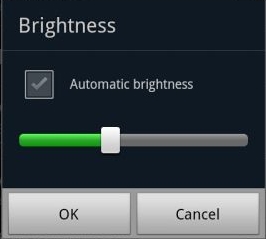
2.On the Brightness window, uncheck the Automatic brightness checkbox.

samsung galaxy S2 increase and decrease display screen brightness

3. Return back to the Home Screen

4. At the top of the screen, by long pressing that notification bar for a second, then you can swipe it to the LEFT to Decrease and by swiping it to Right will Increase the screen brightness.

In that set up you can now manually adjust the screen brightness while reading text without going though the display settings again.
Read more »

How to Add Remove or Delete Facebook Exchange on Samsung Galaxy S II I9100

0 comments
Gmail accounts on Samsung Galaxy S II I9100. Here's a simple guide if you want to add and or remove any network accounts on your Samsung Galaxy S II. This may help you remove old Email,Gmail, Facebook account or multiple accounts that you no longer use on  Samsung Galaxy S II.

Adding an account on Samsung Galaxy S II:

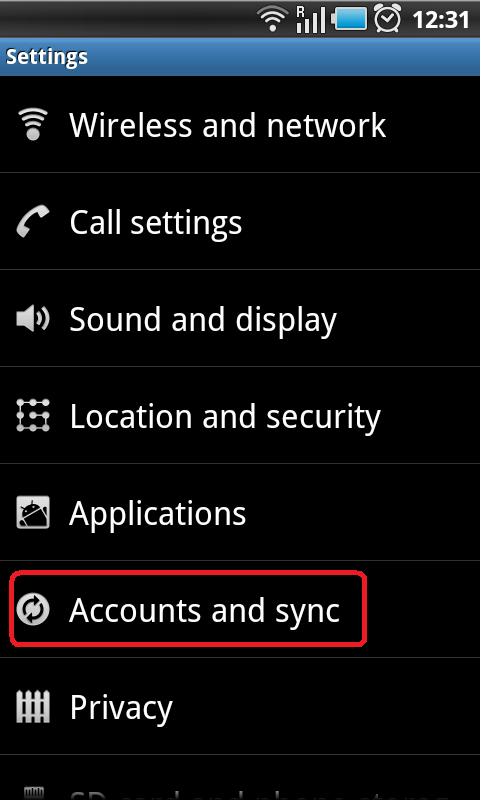
1. Open Settings, the tap on the Accounts & sync selection

samsung galaxy S II add account

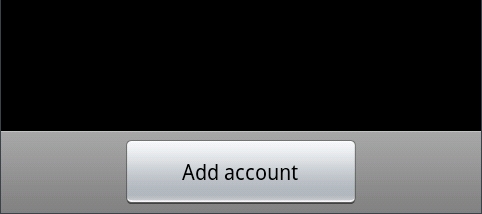
2. Tap on Add account

samsung galaxy S II add account select

3. Select the type of account to add (Microsoft Exchange, Facebook and Google are available by default)
4. Follow the on-screen instructions to configure your account (depending on account type, you will be asked to select what kind of data to sync to your device)
5. When complete, the account is added to the list in the Accounts & sync section and data will begin synchronizing to your device

Removing an account on Samsung Galaxy S II:

1. Open Settings, then tap on the Accounts & sync selection
2. Select the desire account you want to remove or delete
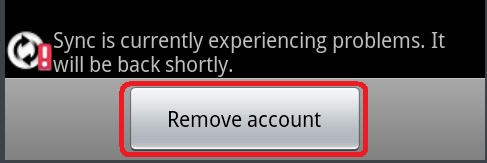
3. Then Tap Remove account

samsung galaxy S II remove account select


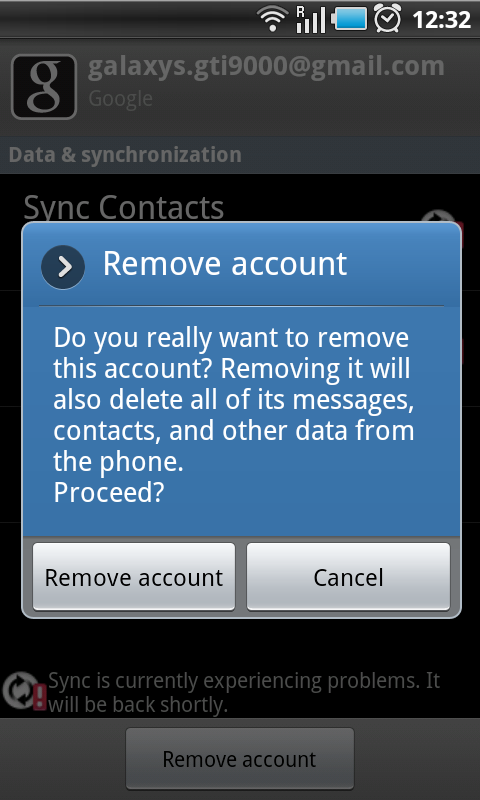
samsung galaxy S II confirm remove account
4. A pop-up message appear: Do you really want to remove this account? removing it will also delete all of its messages, contacts, and other data from phone.
proceed?

Just confirm that you want to remove the account by tapping on Remove account or tap on Cancel if you selected the wrong account
Remove account
5. Your account will now be deleted
Read more »