Showing posts with label Contacts. Show all posts
Showing posts with label Contacts. Show all posts
Wednesday, May 13, 2015
Exporting All Contacts to SIM Card on Samsung Galaxy P1000 Tab
Labels: Contacts, Exporting, Galaxy, P1000, Samsung 0 commentsThis is the simple steps on How to Export All Contacts to SIM Card on Samsung P1000 Galaxy Tab Android 2.2 Froyo. We show you how to export contacts to SIM card on Samsung Galaxy Tab. Here's the simple steps that you need to follow to relocate your contacts from your Samsung Galaxy Tab to SIM card.
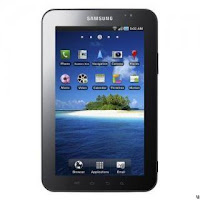
1: Go to “Applications” on your “Home” Screen and select “Contacts”
2: Touch the “Menu” key and navigate to “Import/Export contacts” and select “Export to SIM card” option.
3: You may select the contacts that you want to put to your SIM card from the list of all contacts. Subsequently, you choose “Copy/Move” button at the bottom and then choose “Yes”.
After that, the Samsung P1000 Galaxy Tab will start duplicating all the selected contacts and moving it to your SIM card.
Read more »

1: Go to “Applications” on your “Home” Screen and select “Contacts”
2: Touch the “Menu” key and navigate to “Import/Export contacts” and select “Export to SIM card” option.
3: You may select the contacts that you want to put to your SIM card from the list of all contacts. Subsequently, you choose “Copy/Move” button at the bottom and then choose “Yes”.
After that, the Samsung P1000 Galaxy Tab will start duplicating all the selected contacts and moving it to your SIM card.

How to copy contacts to Samsung Galaxy Ace S5830 from SIM Card
Labels: Contacts, Galaxy, S5830, Samsung 0 commentsIf you want to copy the contacts from your old phones to your new Samsung Galaxy Ace S5830, you can simply do it by this method below:
If you are using the same carrier’s SIM card as the new phone carrier, it is very easy to transfer the contacts information to your new Samsung Galaxy Ace, just take the following steps.
-from the homescreen tap Applications
-tap Contacts
-press the Menu key
-tap Import/Export
-select import from SIM
-press the Menu key
-tap Import all
If your former carrier is different from your new Samsung Galaxy Ace carrier, for it is an android smartphone, you need to export your contacts as .cvs file to your PC, then import it to your gmail and then sync it to your Samsung S5830.
Read more »
If you are using the same carrier’s SIM card as the new phone carrier, it is very easy to transfer the contacts information to your new Samsung Galaxy Ace, just take the following steps.
-from the homescreen tap Applications
-tap Contacts
-press the Menu key
-tap Import/Export
-select import from SIM
-press the Menu key
-tap Import all
If your former carrier is different from your new Samsung Galaxy Ace carrier, for it is an android smartphone, you need to export your contacts as .cvs file to your PC, then import it to your gmail and then sync it to your Samsung S5830.
Transfer All SIM Card Contacts to Samsung P1000 Galaxy Tab Android 2.2 Froyo
Labels: Android, Contacts, Froyo, Galaxy, P1000, Samsung, Transfer 0 commentsThis is the steps on How to Import All the contacts from the SIM card to Samsung P1000 Galaxy Tab Android 2.2 Froyo. This is a simple tutorial on the steps of transferring SIM card contacts to your new Samsung Galaxy Tab.
Just simply,
1: Go to “Home” Screen, select “Applications” and then select “Contacts”.
2: Touch the “Menu” button, navigate “Import/Export” selection and select “Import from SIM card”
3: Touch “Menu” button and select “Copy to Phone” option.
4: Pick “Select All” > “Done”.
That's it! You have just successfully done importing all your contacts from your SIM card to your new Samsung Galaxy Tab.
Read more »
Just simply,
1: Go to “Home” Screen, select “Applications” and then select “Contacts”.
2: Touch the “Menu” button, navigate “Import/Export” selection and select “Import from SIM card”
3: Touch “Menu” button and select “Copy to Phone” option.
4: Pick “Select All” > “Done”.
Subscribe to:
Posts (Atom)
