Showing posts with label Screen. Show all posts
Showing posts with label Screen. Show all posts
Wednesday, May 13, 2015
How to Auto Adjust the Screen Brightness on Samsung Galaxy S II I9100
Labels: Adjust, Brightness, Galaxy, I9100, Samsung, Screen 0 commentsHere's how to quickly change or adjust the LCD Screen display brightness on your Samsung Galaxy S II I9100, anytime you want that suit for your eyesight preference.
Here's how you can adjust the screen brightness levels to your like.
1. From Home Screen, go to Settings then Tap on Display

2.On the Brightness window, uncheck the Automatic brightness checkbox.
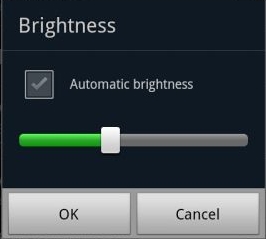
3. Return back to the Home Screen
4. At the top of the screen, by long pressing that notification bar for a second, then you can swipe it to the LEFT to Decrease and by swiping it to Right will Increase the screen brightness.
In that set up you can now manually adjust the screen brightness while reading text without going though the display settings again.
Read more »
Here's how you can adjust the screen brightness levels to your like.
1. From Home Screen, go to Settings then Tap on Display
2.On the Brightness window, uncheck the Automatic brightness checkbox.
3. Return back to the Home Screen
4. At the top of the screen, by long pressing that notification bar for a second, then you can swipe it to the LEFT to Decrease and by swiping it to Right will Increase the screen brightness.
In that set up you can now manually adjust the screen brightness while reading text without going though the display settings again.

How to Take Screenshot (Screen Capture) on Samsung Galaxy Ace S5830
Labels: Capture, Galaxy, S5830, Samsung, Screen, Screenshot, Trick 0 commentsThis guide are for Samsung Galaxy Ace users that doesn't know yet how to take or capture screen image from the phone. When I got my Ace S5830 I have the same scenario too, then tweaking up and tried to press several button combination. And fortunately I figured it out after trying several attempts pressing the HOME button with the BACK button (touch sensitive buttons - on the left and right of HOME button). Bingo! that's how we can take and save screenshots on our Galaxy Ace.
An example of a screenshot on my Samsung Galaxy Ace

Method :
Navigate to the screen you want to take screenshot ( homescreens, menu's, or game screens, etc ) press and hold the back button in the right corner while holding it, press menu key once and a notification will say the screenshot is taken. The images will then automatically save in the image file folder called "Screencapture"
That's it all!
Read more »
An example of a screenshot on my Samsung Galaxy Ace

Method :
Navigate to the screen you want to take screenshot ( homescreens, menu's, or game screens, etc ) press and hold the back button in the right corner while holding it, press menu key once and a notification will say the screenshot is taken. The images will then automatically save in the image file folder called "Screencapture"
That's it all!
Subscribe to:
Posts (Atom)
