Showing posts with label S5830. Show all posts
Showing posts with label S5830. Show all posts
Wednesday, May 13, 2015
Download Samsung Galaxy Ace S5830 User Manual
Labels: Download, Galaxy, Manual, S5830, Samsung 0 commentsIf you are looking for the Samsung Galaxy Ace S5830 User Manual you can download it here. It was not yet long time ago since the Samsung Galaxy Ace S5830 has been released and you will need to know how to navigate of its function.
Well, here's the Samsung Galaxy Ace S5830 User Manual
http://downloadcenter.samsung.com/content/UM/201107/20110718182314433/GT-S5830_UM_EU_Gingerbread_Eng_Rev1.0_110512.pdf
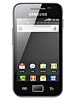
All you need to know about how to use you Samsung Galaxy Ace S5830 is on it.
Read more »
Well, here's the Samsung Galaxy Ace S5830 User Manual
http://downloadcenter.samsung.com/content/UM/201107/20110718182314433/GT-S5830_UM_EU_Gingerbread_Eng_Rev1.0_110512.pdf
All you need to know about how to use you Samsung Galaxy Ace S5830 is on it.

How to copy contacts to Samsung Galaxy Ace S5830 from SIM Card
Labels: Contacts, Galaxy, S5830, Samsung 0 commentsIf you want to copy the contacts from your old phones to your new Samsung Galaxy Ace S5830, you can simply do it by this method below:
If you are using the same carrier’s SIM card as the new phone carrier, it is very easy to transfer the contacts information to your new Samsung Galaxy Ace, just take the following steps.
-from the homescreen tap Applications
-tap Contacts
-press the Menu key
-tap Import/Export
-select import from SIM
-press the Menu key
-tap Import all
If your former carrier is different from your new Samsung Galaxy Ace carrier, for it is an android smartphone, you need to export your contacts as .cvs file to your PC, then import it to your gmail and then sync it to your Samsung S5830.
Read more »
If you are using the same carrier’s SIM card as the new phone carrier, it is very easy to transfer the contacts information to your new Samsung Galaxy Ace, just take the following steps.
-from the homescreen tap Applications
-tap Contacts
-press the Menu key
-tap Import/Export
-select import from SIM
-press the Menu key
-tap Import all
If your former carrier is different from your new Samsung Galaxy Ace carrier, for it is an android smartphone, you need to export your contacts as .cvs file to your PC, then import it to your gmail and then sync it to your Samsung S5830.
How to Delete/Remove Applications on Samsung Galaxy Ace S5830
Labels: Applications, DeleteRemove, Galaxy, S5830, Samsung 0 commentsIf you ever wanted to remove some pre-installed applications on your Samsung Galaxy Ace which you found it like some kinda weird and rubbish or doesn't suites your likings, you can remove it with just a simple steps below. The pre-installed applications on your Samsung Galaxy Ace cannot be simply removed because it's already in there and already launched by default firmware when you purchased it.
This tricks below will help you solved out of this problem. This will not just removed any applications you dislikes but unlocked your phone to a wide variety of applications what ever you wanted from android market. This process is called rooting, you may need to root your Galaxy Ace first before you can get access to your phone and then delete that applications you do not want anymore.
Follow the procedure over at XDA on how to Root your Samsung Galaxy ACE, It's been easy and quite simple. But take Note Rooting your Galaxy Ace will void the warranty of your phone. So proceed with precautions.
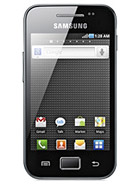 Once your Samsung Galaxy Ace already rooted do the steps below:
> On the Home screen,
> Select Menu key
> Then click Next to continue, or click the highlighted area on the phone.
> Tap Settings
> Applications
> Manage applications.
> Select the desired applications you want to remove
> Uninstall
> OK wait the uninstalling process finish
> Then OK.
Just repeat this process if you wanted to remove another applications on your Samsung Galaxy Ace.
Read more »
This tricks below will help you solved out of this problem. This will not just removed any applications you dislikes but unlocked your phone to a wide variety of applications what ever you wanted from android market. This process is called rooting, you may need to root your Galaxy Ace first before you can get access to your phone and then delete that applications you do not want anymore.
Follow the procedure over at XDA on how to Root your Samsung Galaxy ACE, It's been easy and quite simple. But take Note Rooting your Galaxy Ace will void the warranty of your phone. So proceed with precautions.
> On the Home screen,
> Select Menu key
> Then click Next to continue, or click the highlighted area on the phone.
> Tap Settings
> Applications
> Manage applications.
> Select the desired applications you want to remove
> Uninstall
> OK wait the uninstalling process finish
> Then OK.
Just repeat this process if you wanted to remove another applications on your Samsung Galaxy Ace.
How to Format or Reset Samsung Galaxy Ace S5830
Labels: Format, Galaxy, Reset, S5830, Samsung 0 commentsHere's the simple instruction on how to reset your Samsung Galaxy Ace S5830. You can also download the
user manual for Samsung Galaxy Ace S5830 here.
Performing soft reset and hard reset will help if your device experiencing some hang up problems, or it slower than ever before. This will remove all the data you previously installed on it like applications that causes the device to run slower. So make sure to back up all important data before you proceed.
Here's the step by step instruction how to perform a hard reset on Samsung Galaxy Ace S5830:
1. On the main Home Screen, select Menu
2. Select Settings
3. Scroll to and select Privacy
4. Scroll to and select Privacy
5. Select Factory Data Reset
5. Select Reset Phone
6. Enter the password if prompted, then confirm by selecting Erase Everything
You can reset your phone by entering the code *2767*3855#. All settings will then reset to factory default settings.
But sometimes the code may not always useful if your Samsung Galaxy Ace is frozen and become unresponsive or in other sever hang problem like it just hangs on welcome screen logo. To fix it, just then again remove the battery out, then put it back again. Don't power it ON yet, just press and hold the Volume Up, Center button and Power button at the same time. A menu will then appear that let choose with an option. Just use the volume button to toggle and select the wipe data/factory reset, that will then reset your Galaxy Ace to it's factory default settings.
Read more »
user manual for Samsung Galaxy Ace S5830 here.
Performing soft reset and hard reset will help if your device experiencing some hang up problems, or it slower than ever before. This will remove all the data you previously installed on it like applications that causes the device to run slower. So make sure to back up all important data before you proceed.
Here's the step by step instruction how to perform a hard reset on Samsung Galaxy Ace S5830:
1. On the main Home Screen, select Menu
2. Select Settings
3. Scroll to and select Privacy
4. Scroll to and select Privacy
5. Select Factory Data Reset
5. Select Reset Phone
6. Enter the password if prompted, then confirm by selecting Erase Everything
You can reset your phone by entering the code *2767*3855#. All settings will then reset to factory default settings.
But sometimes the code may not always useful if your Samsung Galaxy Ace is frozen and become unresponsive or in other sever hang problem like it just hangs on welcome screen logo. To fix it, just then again remove the battery out, then put it back again. Don't power it ON yet, just press and hold the Volume Up, Center button and Power button at the same time. A menu will then appear that let choose with an option. Just use the volume button to toggle and select the wipe data/factory reset, that will then reset your Galaxy Ace to it's factory default settings.
How to Take Screenshot (Screen Capture) on Samsung Galaxy Ace S5830
Labels: Capture, Galaxy, S5830, Samsung, Screen, Screenshot, Trick 0 commentsThis guide are for Samsung Galaxy Ace users that doesn't know yet how to take or capture screen image from the phone. When I got my Ace S5830 I have the same scenario too, then tweaking up and tried to press several button combination. And fortunately I figured it out after trying several attempts pressing the HOME button with the BACK button (touch sensitive buttons - on the left and right of HOME button). Bingo! that's how we can take and save screenshots on our Galaxy Ace.
An example of a screenshot on my Samsung Galaxy Ace

Method :
Navigate to the screen you want to take screenshot ( homescreens, menu's, or game screens, etc ) press and hold the back button in the right corner while holding it, press menu key once and a notification will say the screenshot is taken. The images will then automatically save in the image file folder called "Screencapture"
That's it all!
Read more »
An example of a screenshot on my Samsung Galaxy Ace

Method :
Navigate to the screen you want to take screenshot ( homescreens, menu's, or game screens, etc ) press and hold the back button in the right corner while holding it, press menu key once and a notification will say the screenshot is taken. The images will then automatically save in the image file folder called "Screencapture"
That's it all!
Subscribe to:
Posts (Atom)
