Showing posts with label Format. Show all posts
Showing posts with label Format. Show all posts
Wednesday, May 13, 2015
How to Format or Reset Samsung Galaxy Ace S5830
Labels: Format, Galaxy, Reset, S5830, Samsung 0 commentsHere's the simple instruction on how to reset your Samsung Galaxy Ace S5830. You can also download the
user manual for Samsung Galaxy Ace S5830 here.
Performing soft reset and hard reset will help if your device experiencing some hang up problems, or it slower than ever before. This will remove all the data you previously installed on it like applications that causes the device to run slower. So make sure to back up all important data before you proceed.
Here's the step by step instruction how to perform a hard reset on Samsung Galaxy Ace S5830:
1. On the main Home Screen, select Menu
2. Select Settings
3. Scroll to and select Privacy
4. Scroll to and select Privacy
5. Select Factory Data Reset
5. Select Reset Phone
6. Enter the password if prompted, then confirm by selecting Erase Everything
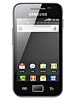
You can reset your phone by entering the code *2767*3855#. All settings will then reset to factory default settings.
But sometimes the code may not always useful if your Samsung Galaxy Ace is frozen and become unresponsive or in other sever hang problem like it just hangs on welcome screen logo. To fix it, just then again remove the battery out, then put it back again. Don't power it ON yet, just press and hold the Volume Up, Center button and Power button at the same time. A menu will then appear that let choose with an option. Just use the volume button to toggle and select the wipe data/factory reset, that will then reset your Galaxy Ace to it's factory default settings.
Read more »
user manual for Samsung Galaxy Ace S5830 here.
Performing soft reset and hard reset will help if your device experiencing some hang up problems, or it slower than ever before. This will remove all the data you previously installed on it like applications that causes the device to run slower. So make sure to back up all important data before you proceed.
Here's the step by step instruction how to perform a hard reset on Samsung Galaxy Ace S5830:
1. On the main Home Screen, select Menu
2. Select Settings
3. Scroll to and select Privacy
4. Scroll to and select Privacy
5. Select Factory Data Reset
5. Select Reset Phone
6. Enter the password if prompted, then confirm by selecting Erase Everything
You can reset your phone by entering the code *2767*3855#. All settings will then reset to factory default settings.
But sometimes the code may not always useful if your Samsung Galaxy Ace is frozen and become unresponsive or in other sever hang problem like it just hangs on welcome screen logo. To fix it, just then again remove the battery out, then put it back again. Don't power it ON yet, just press and hold the Volume Up, Center button and Power button at the same time. A menu will then appear that let choose with an option. Just use the volume button to toggle and select the wipe data/factory reset, that will then reset your Galaxy Ace to it's factory default settings.

How to Format or Reset Samsung Galaxy S Plus I9001
Labels: Format, Galaxy, I9001, Reset, Samsung 0 commentsHere's the following simple tips on how to do a factory reset or format the Samsung Galaxy S Plus I9001 and restore it back to it's original factory default settings. This procedure may help if you'll experience some slow performance, fix lags, hang or frozen issues. This may also wipe any unwanted firmware interruption due of some applications you've installed on the phone that result to some poor performance issues.
Note: Just ensure to back up all of your important data stored from the phone, for this will wipe it all out and clear you device and stored back again like the first time you bought it.
 So, here's the factory reset method:
Factory reset - this is only a soft reset method, you can do this if the device is still active or you can still navigate to it's menu and settings function.
-Tap the Menu key
-Tap Settings
-Scroll down to and tap Privacy
-Tap Factory data reset
-Tap Reset phone
-Tap Erase everything.
You can also do a factory reset while only typing this reset code on the dial pad #2767*3855#.
If the Samsung Galaxy S Plus I9001 is frozen or stuck on boot or hangs on welcome screen logo only. This time you will need to hard reset it by way of button combination since you cannot do a factory reset from the instruction above.
- Turn your Samsung Galaxy S Plus I9001 off, or remove the battery for about 10 seconds then put it back again.
- Then press and hold the following buttons Home button + Volume up + Power button
Then a menu will show, just select Wipe Data/Factory Reset.
That's it! You can also download the user manual for Samsung Galaxy S Plus I9001 here, if you need more information on how to do some tweaks on your Galaxy S Plus android device.
Read more »
Note: Just ensure to back up all of your important data stored from the phone, for this will wipe it all out and clear you device and stored back again like the first time you bought it.
Factory reset - this is only a soft reset method, you can do this if the device is still active or you can still navigate to it's menu and settings function.
-Tap the Menu key
-Tap Settings
-Scroll down to and tap Privacy
-Tap Factory data reset
-Tap Reset phone
-Tap Erase everything.
You can also do a factory reset while only typing this reset code on the dial pad #2767*3855#.
If the Samsung Galaxy S Plus I9001 is frozen or stuck on boot or hangs on welcome screen logo only. This time you will need to hard reset it by way of button combination since you cannot do a factory reset from the instruction above.
- Turn your Samsung Galaxy S Plus I9001 off, or remove the battery for about 10 seconds then put it back again.
- Then press and hold the following buttons Home button + Volume up + Power button
Then a menu will show, just select Wipe Data/Factory Reset.
That's it! You can also download the user manual for Samsung Galaxy S Plus I9001 here, if you need more information on how to do some tweaks on your Galaxy S Plus android device.
Subscribe to:
Posts (Atom)
